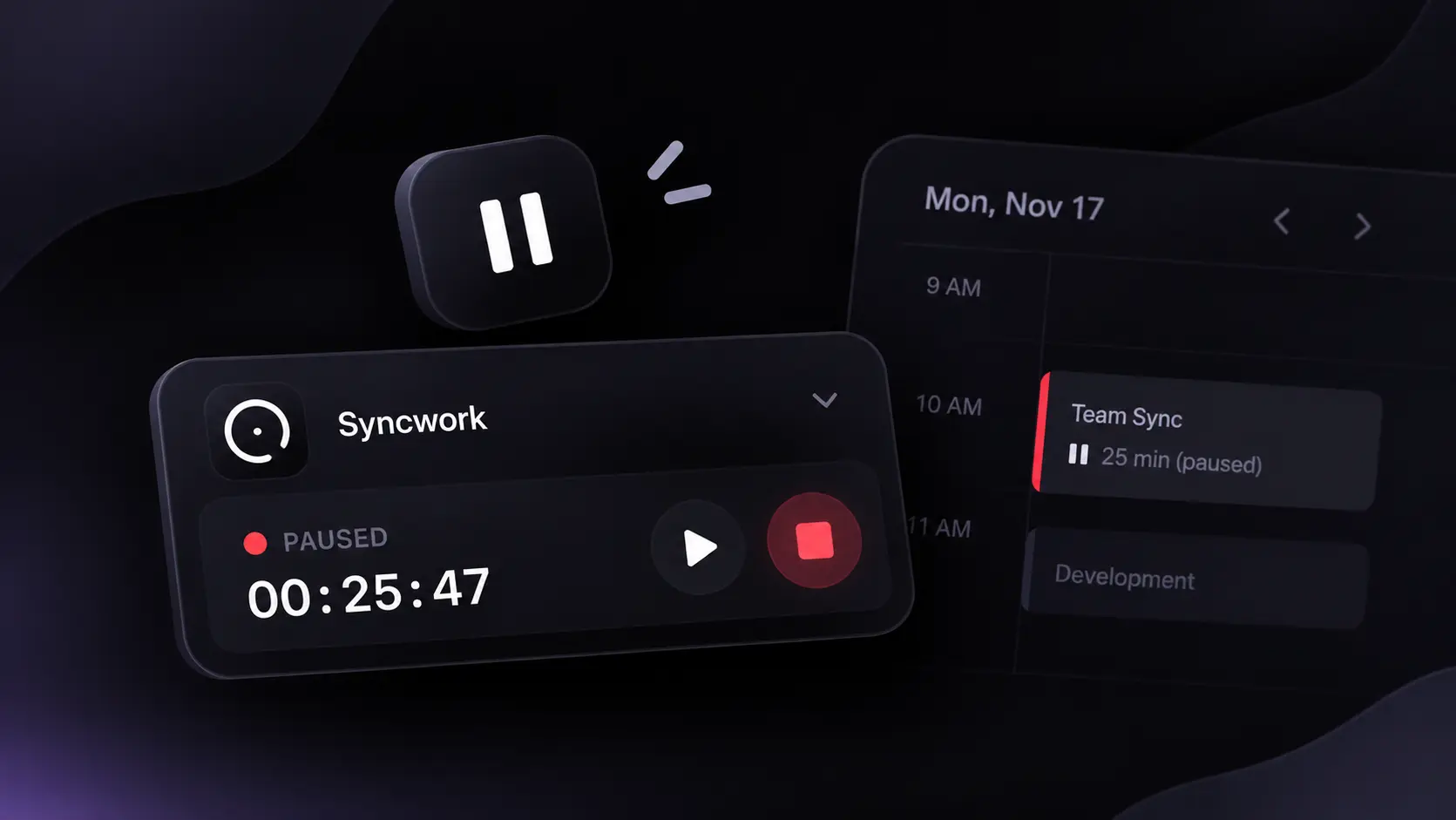
Your calendar already knows how you spent your day. Meetings, calls, work blocks, it is all there. But your timesheet does not know, so you type everything again later.
Two new Syncwork updates fix this: Google Calendar time tracking and timers you can start without a project. Both work on the web and in the desktop app (version 0.1.3).
See what is new in 0.1.3 or see the timer features.
Google Calendar time tracking: turn events into time entries
Most people plan their day in Google Calendar and track their time somewhere else. That means doing the same work twice.
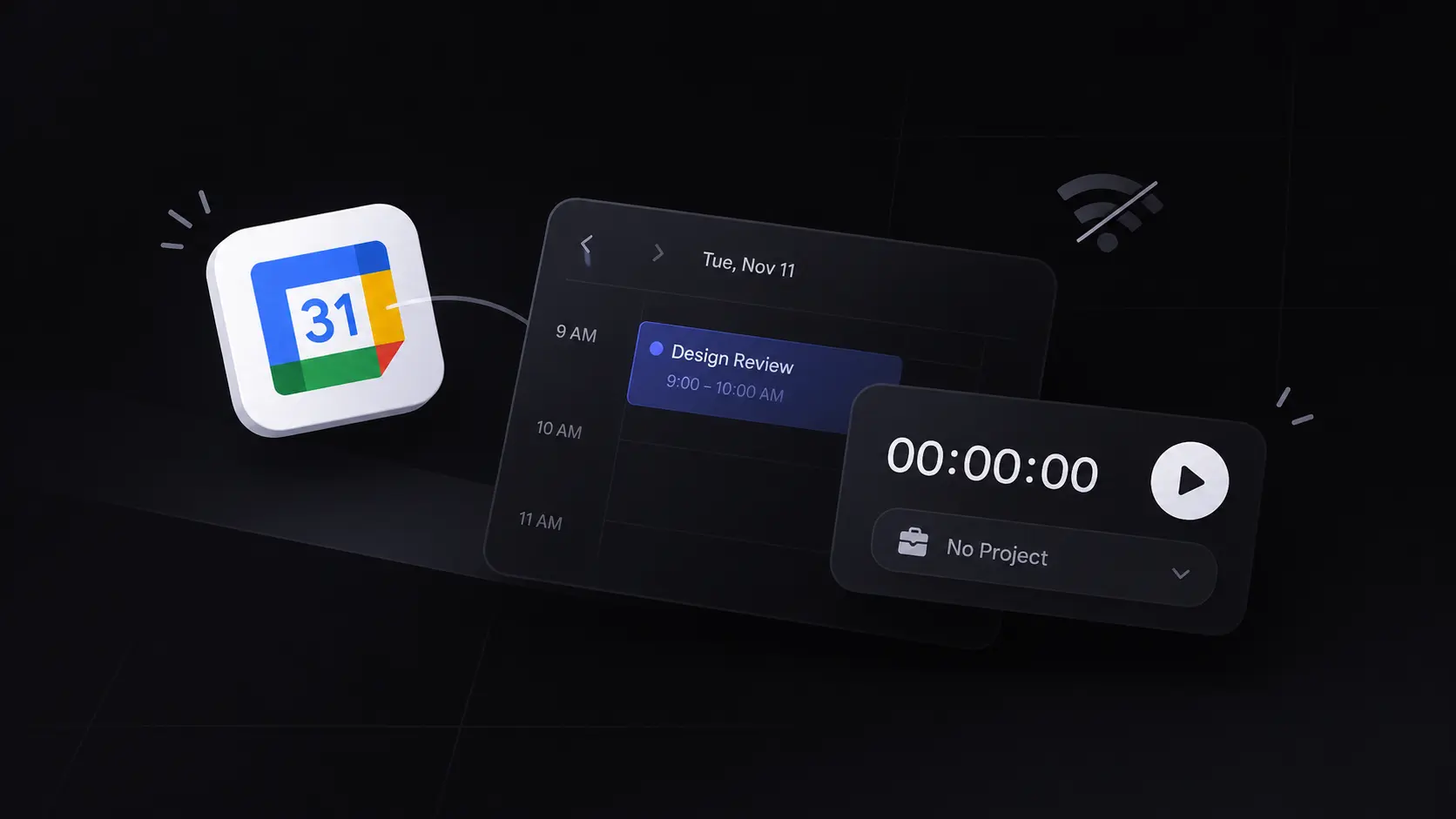
Now you can connect your Google account to Syncwork. Your events show up next to your time entries. With one click, an event becomes a time entry.
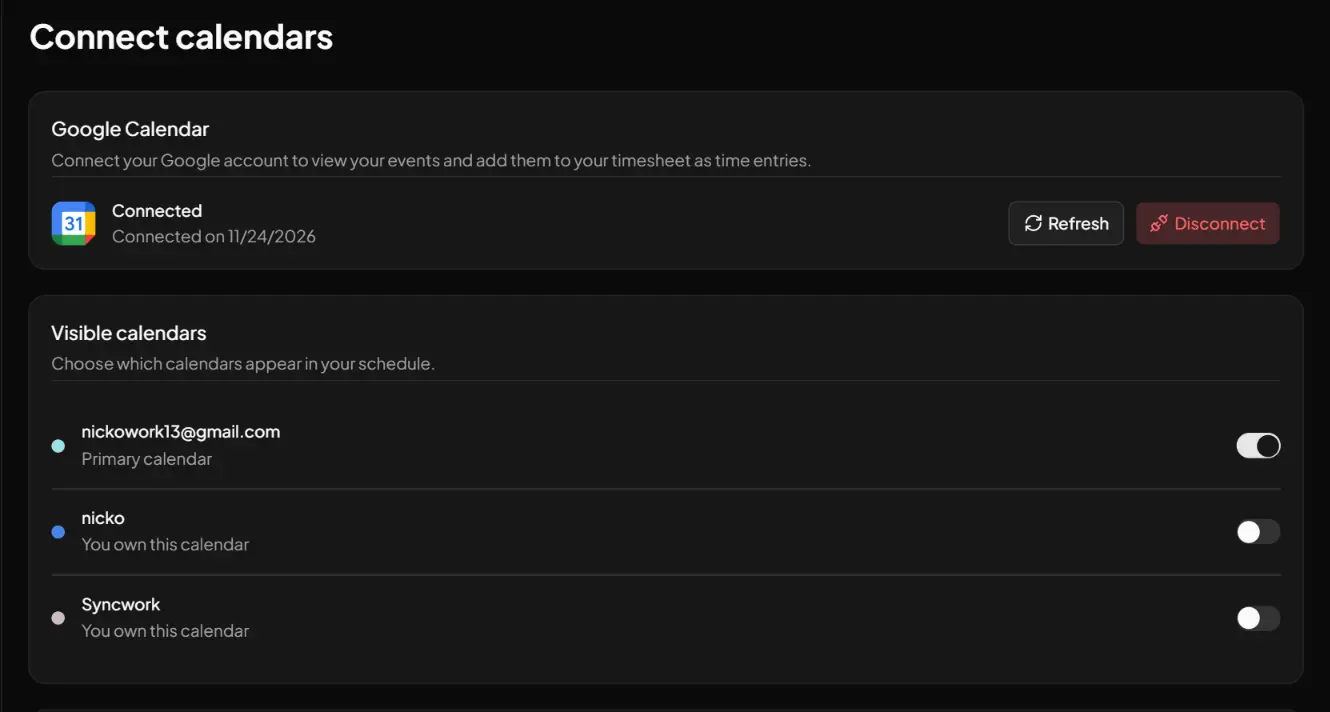
Here is how it works:
- Go to the integrations page and connect your Google account.
- Choose which calendars you want to see. For example, show your work calendar and hide your personal one.
- Open your Syncwork calendar. Your Google events appear with a dashed border, so you can tell them apart from your real time entries.
- Click an event and press Add to timesheet.
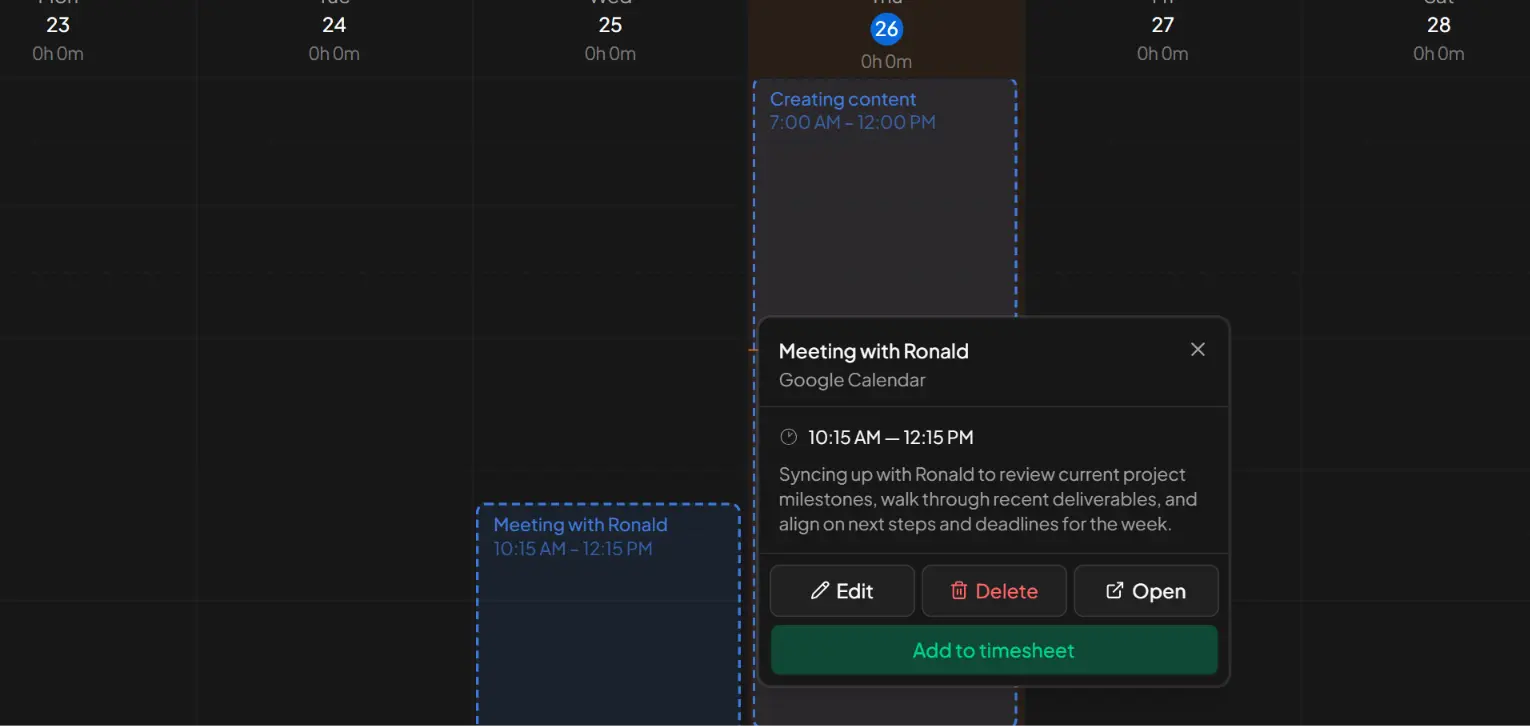
The title, description and time come from the event. You do not need to type them again. This is useful for meetings, calls and any work you already planned in your calendar.
Google Calendar is included in the free plan.
Careful: changes also go to Google
You can edit or delete a Google event from inside Syncwork. When you do, the change is also made in Google Calendar. So if you delete an event here, it is deleted there too. Check before you press delete.
Google Calendar time tracking in the desktop app
You connect your calendar on the website. If you click connect in the desktop app, it opens the website for you. After you finish, your events sync into the desktop app as well.
So you can plan on the web and track on desktop, with the same events in both places. The desktop app also got new keyboard shortcuts and fixes in this version. See the full list.
Offline: your time entries are not lost
Internet goes away at bad times. Maybe you are on a train, or the wifi in a cafe stops.
Google Calendar in Syncwork can still work offline. There is one limit: the events you loaded earlier may be out of date until you refresh the page. Once you are back online, refresh and you will see the latest events.
The important part is this. If your wifi turns off while you are turning an event into a time entry, nothing is lost. The entry is saved on your device. When you are back online, it syncs by itself. You do not need to enter it again.
Start a timer without choosing a project first
Before this update, you had to pick a project before you could start a timer. That is a problem when you are in a hurry. A client calls, or you start a new task and do not know where it belongs yet.
Now you can press start right away. Choose the project later, when you know it.
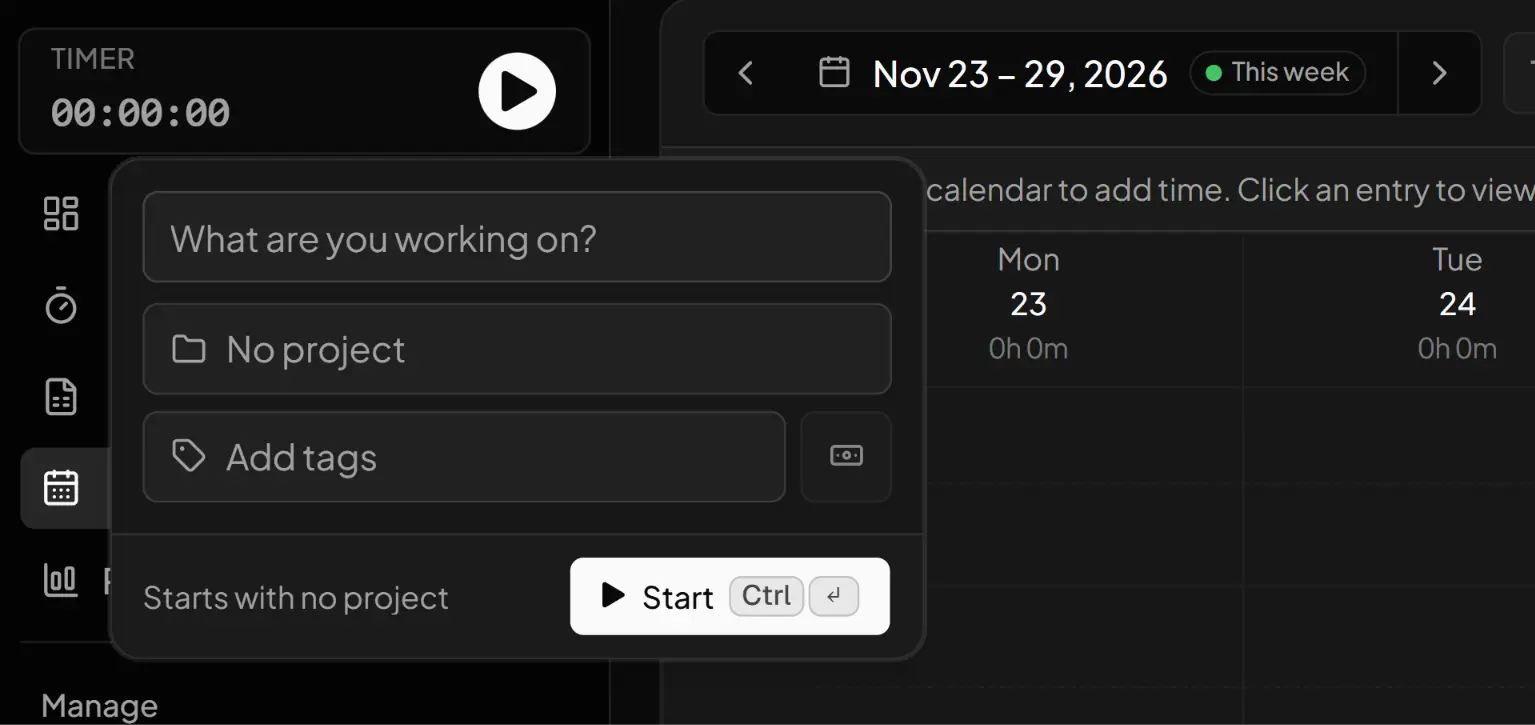
This works on the web and in the desktop app. Here is what to know:
- It is saved like a normal entry. It shows in your reports and in your PDF exports.
- It is non-billable. An entry with no project cannot be billable.
- Add a project to make it billable. When you add a project, you can turn billable on.
This way you never lose time because you were too slow to pick a project.
You choose: project required or not
Some teams want every hour linked to a project. Others want speed first. Syncwork lets you pick what fits your workspace.
Go to your workspace settings. Under Time Tracking, you will see the toggle Require a project for time entries.

- Turn it on: members must pick a project before they track time.
- Turn it off: anyone can start a timer without a project and choose one later.
Existing entries are not changed when you switch the setting. Open your workspace settings to choose.
Try both updates
Download Syncwork for desktop to get version 0.1.3, or open Syncwork in your browser. Connect your calendar, turn one event into a time entry, and start one timer without a project.
Want to see everything that changed? Read the 0.1.3 changelog. Want the full tour of the app? Explore the desktop features. Something missing, or not working the way you expect? Tell us.