You start the timer, then the phone rings. Or it's lunch. Or a coworker pulls you into a quick chat that turns into twenty minutes. Until now, your options were to stop the timer and start a new entry, or leave it running and fix the damage later.
Neither is great. Stopping splits one task into several entries. Leaving it running means your timesheet, and maybe your client's invoice, includes time you weren't working.
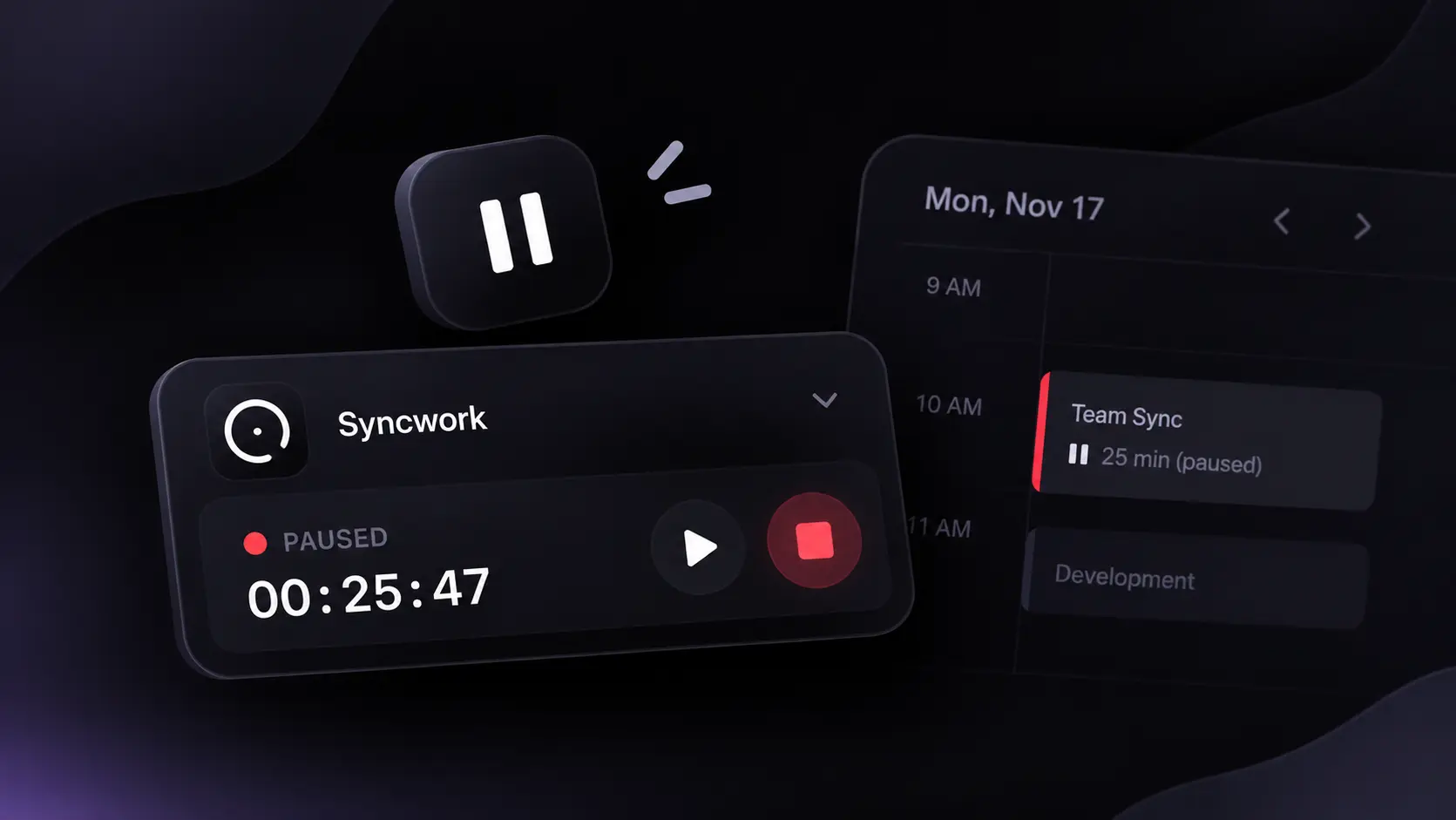
Syncwork now has a pause button. Pause when you step away, resume in one click, and keep everything in a single entry.
Try the timer or download the desktop app.
Pause or stop: you choose
When you start a timer, you now get two controls: pause and stop.
- Pause holds the timer. The entry stays open, and the time you're away is not counted toward your tracked hours.
- Stop ends the entry, as before.
Resume whenever you're back and the same entry picks up where it left off. No duplicate entries, no re-typing the description, no re-adding tags.

The running entry shows how much time you've paused right next to the start time, so you always know how a long break has affected the entry. In the example above, the entry started at 1:18 PM and has 12 seconds paused.
Pause and resume from the context menu
You don't have to reach for the main buttons. On the timer page, every entry has a context menu (the three dots), and pause and resume are in there too.
It's a small thing, but when you're managing several entries in a day, it keeps the common actions in one place.
Paused time shows up on your calendar
Open an entry on the calendar and you'll see exactly how it went. The entry below ran from 10:23 AM to 4:30 PM, but 1 hour 27 minutes of that was paused, so the tracked time is 4 hours 40 minutes.
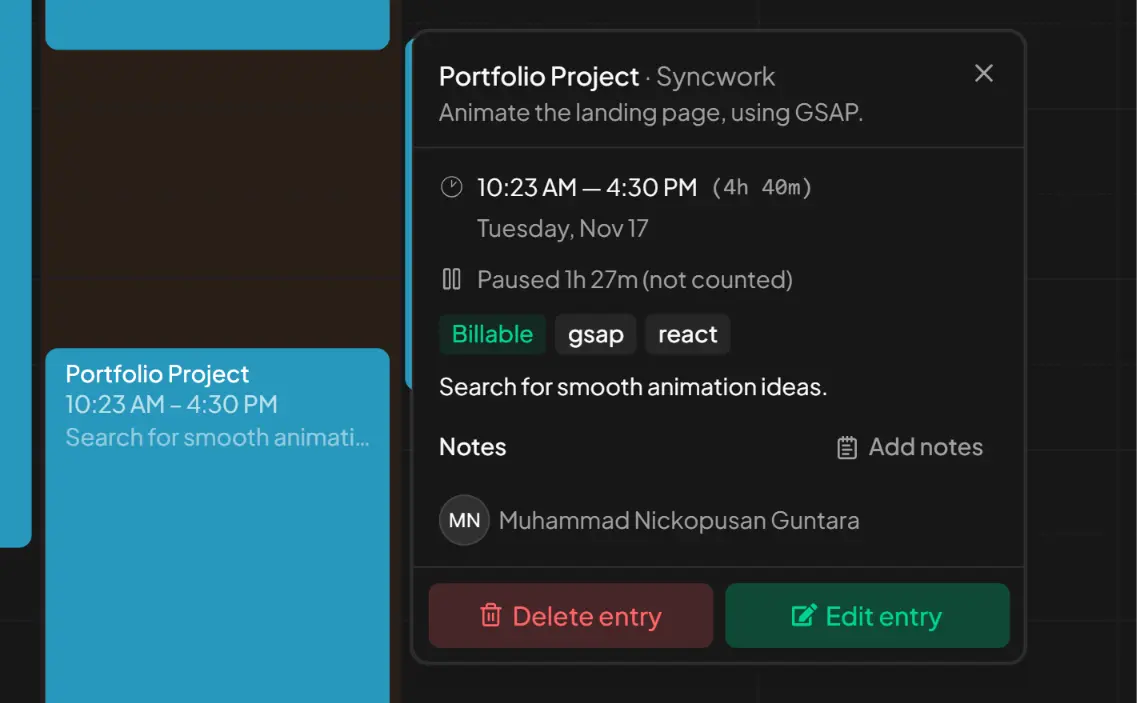
The paused time is labelled not counted, so there's no confusion about what you'll bill. Someone looking at the calendar later can see that the long gap in the middle of the day was a break, not a mistake.
Paused time in your dashboard
Paused time also appears in your Tracked Hours chart on the dashboard, next to billable and non-billable hours.
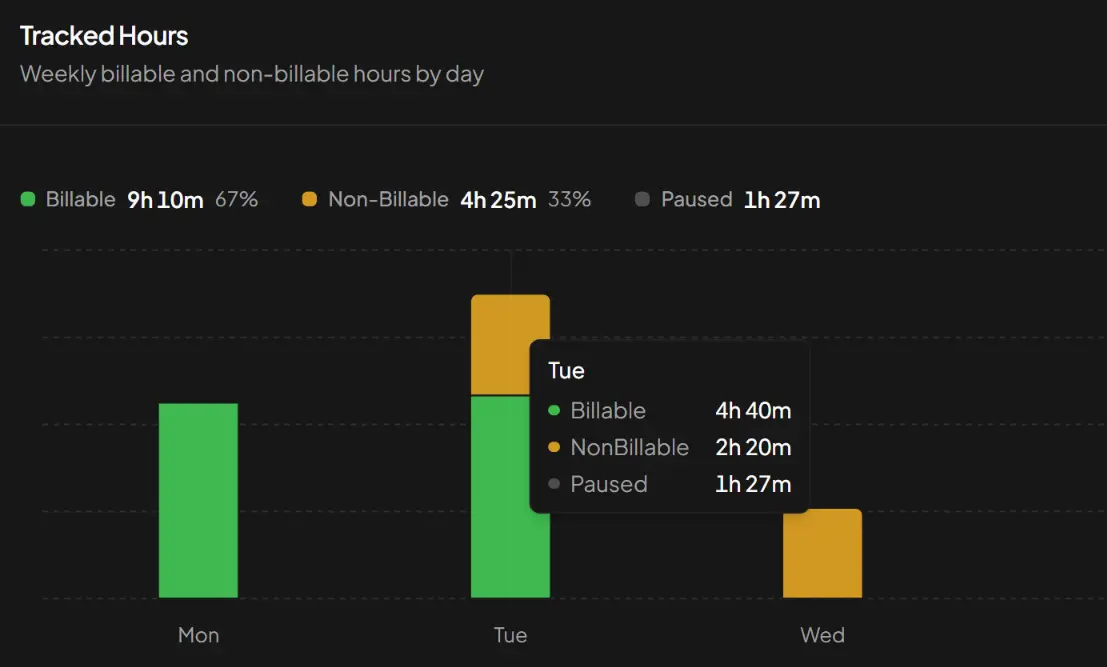
Hover over a day and you get the full breakdown. In the example, Tuesday has 4h 40m billable, 2h 20m non-billable and 1h 27m paused. The totals at the top of the chart give you the same split for the whole week.
This is useful beyond billing. If you pause more than you expected, you'll see it. If you want to know how much of your day goes to breaks and interruptions, it's now in your numbers. For more on reports, see reporting.
Paused time in your PDF exports
When you export your time entries to PDF, paused time is included. That makes the export a more honest record of your day: the hours you worked, and the time you stepped away.
If you share timesheets with clients, this can help. A clear record is one of the best ways to prove your hours to a client.
Pause works offline on desktop
Breaks don't wait for good wifi. In the Syncwork desktop app, you can pause and resume while offline, with no internet connection at all.
Your paused time is saved on your computer and syncs when you're back online, just like the rest of your tracked time. So you can pause on a train, in a cafe with a bad connection, or during a power cut without losing anything.
Pause is one of several features built for the desktop app, alongside activity tracking and idle detection. Read about automatic time tracking with activity, idle detection and offline mode or see all desktop features.
Why this matters
Time tracking only helps if you trust the numbers. A pause button is a simple way to keep your timesheet honest without breaking up your work into extra entries.
- Cleaner entries. One task, one entry, even if you were interrupted.
- Fairer invoices. Breaks stay off the client's bill.
- Better records. Paused time is visible on the calendar, the dashboard and in exports.
Try the pause button
Start a timer, hit pause the next time you step away, and see how it looks on your calendar and dashboard. Download Syncwork for desktop to use it offline too. The free plan has no time limit, so you can try it on real work.
Have an idea for the next update, or something not working the way you expect? Tell us.